
What it does
- Renders your case's criteria and evidence as an interactive graph — nodes for each criterion and each linked piece of evidence, so gaps and single points of failure are visible at a glance.
- Adds four more views on the same data: a per-criterion strength Radar, an evidence-kind × criterion coverage Heatmap, a chronological Timeline, and (once you have two or more analysis versions) a Compare view showing what changed.
- Makes no AI call of its own — it's a live visualization built directly from your existing Case File, evidence items, and grading, so opening it never costs credits and never re-analyzes anything.
When to use it
Case Canvas sits in the Case Journey's Position stage, alongside Field & Narrative Studio and your drafting tools — it unlocks once the Strengthen stage is complete. In practice, open it any time after your first analysis to see the current state of your case, and return to it after every round of new evidence to confirm a gap actually closed.
Its Compare view pairs naturally with Case Matcher and Officer Simulator: use Canvas to see where your evidence is thin, then use those tools to stress-test the argument once it's filled in.
Before you start
- Requires at least one completed case analysis. Canvas reads your most recent Case File version's criteria and evidence — with zero evidence linked, you'll see the empty-state prompt instead of a graph.
- Cost: free to open, always. There's no credit cost for Case Canvas itself; it's gated only by plan (Pro), not by a per-use charge.
- Typical time: a few minutes to explore; best viewed on a larger screen (a Timeline-only fallback shows on mobile).
Step by step
Open Case Canvas from your case. Navigate to your case's Canvas tab. The Graph view loads by default.
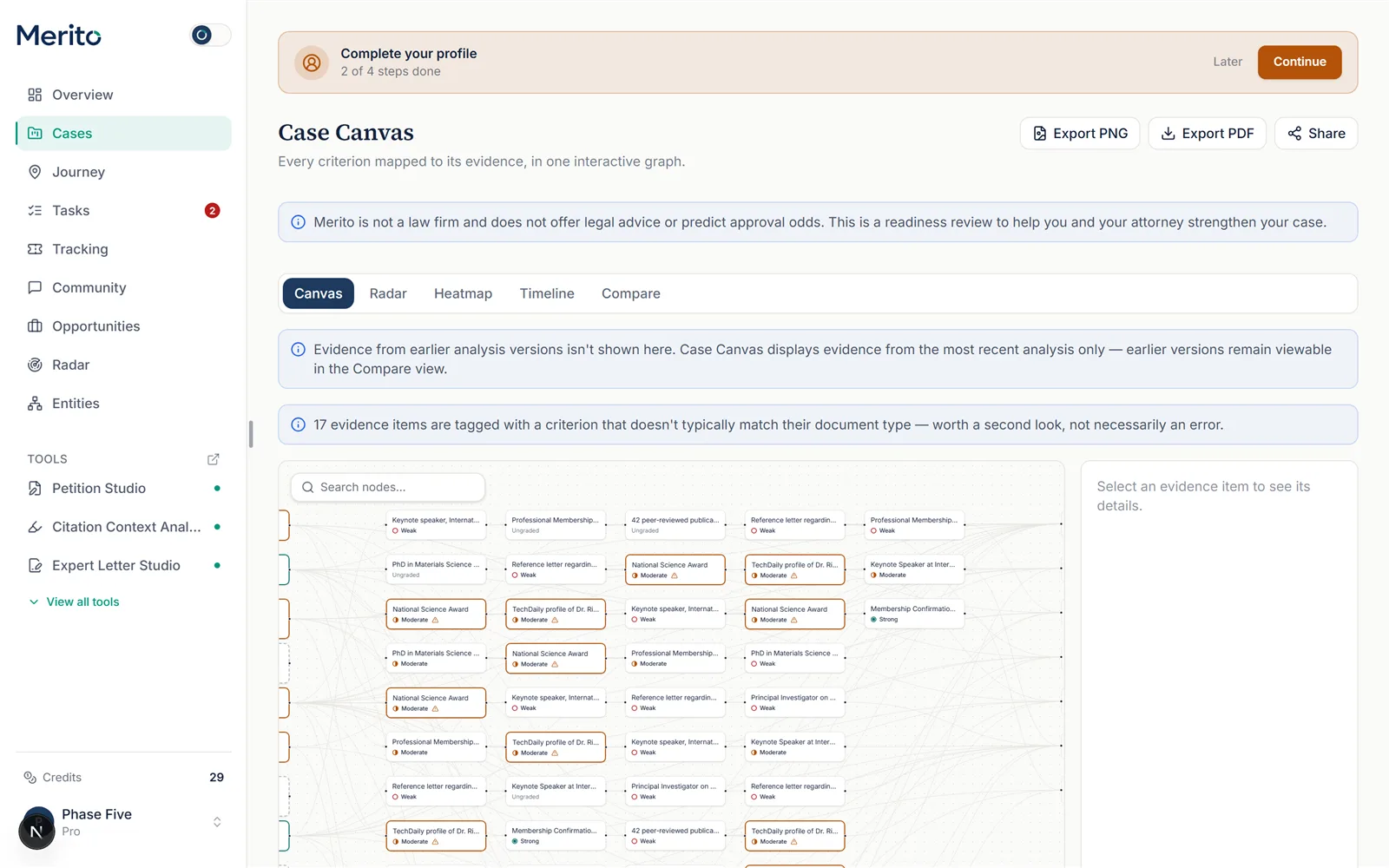
Explore the Graph view. Nodes represent criteria and evidence; search for a specific node with the search box. Select any evidence node to open its details in the side panel — grading rationale, linked criteria, and source reference.
Tip: A highlighted "Backs several criteria" badge marks an exhibit that supports two or more criteria — strengthening that one item lifts all of them.
Check the Radar view for per-criterion strength. Switch tabs to see every criterion plotted by strength (No evidence / Weak / Moderate / Strong). Selecting a point jumps back to the Graph, filtered to that criterion.
Check the Heatmap for coverage gaps. The Heatmap view crosses evidence kind against criterion — an empty cell means you have no evidence of that kind for that criterion. Clicking a cell filters the Graph view to just that intersection.
Review the Timeline. Switch to Timeline to see your evidence laid out chronologically, with gaps of several months flagged and undated evidence called out separately.
Compare two analysis versions (once you have 2+). The Compare tab appears only after a second analysis version exists. It shows per-criterion strength changes and exactly which evidence was added or removed between versions.
Add evidence directly from Canvas, if needed. Use the mini evidence form (with optional file attach, up to 50MB PDF/PNG/JPEG) right from the Canvas view instead of leaving the page.
Export or share. Export the current view as PNG or PDF, or generate a share link — choose "user" mode for a plain read-only view or "attorney" mode for the Attorney View, optionally password-protected with an expiry.
Reading the result
- Strength badges — Gap (no evidence), Weak, Moderate, Strong: a plain-language reading of how well-supported a criterion is, not a probability of approval.
- "Backs several criteria" — marks an exhibit that supports two or more criteria at once; a stronger version of that item lifts every criterion it supports.
- "Ungraded" — evidence that hasn't been through grading yet; treat it as pending, not weak.
- Criterion-kind mismatch notice — flags evidence tagged with a criterion that doesn't typically match its document type; worth a second look, not automatically an error.
- Prior-version notice — Canvas always shows only the most recent analysis version's evidence; earlier versions live in the Compare view, not the main Graph.
Free vs Pro for this tool
- Case Canvas is not available on the Free plan at all — it's on the Pro plan's included tools list, so once you're Pro, opening it costs nothing per use.
- The 7-day Pro trial (card required at Stripe checkout — not a no-card trial) includes 10 trial credits for the tools that do spend credits; Canvas itself never spends any of them since it makes no AI calls.
- Canceling is self-serve from your billing page any time before renewal.
- Start your free trial to see your own case mapped as a graph.
Ready to put this to work on your own case? Start free — no credit card required, or start your free trial to unlock the full Pro toolset. For more background from Merito's parent site, see real EB-1A, O-1A, and EB-2 NIW case studies from EB1 Mentor.
Common mistakes
- Expecting Canvas to show evidence from an earlier analysis version. It only ever shows the latest version's data on the main views — use Compare to see history.
- Reading a criterion-kind mismatch as an error. The notice is explicitly a "worth a second look" flag, not a validation failure — some legitimate evidence genuinely crosses kinds.
- Ignoring the "Backs several criteria" markers until filing. These are exactly the items Achievement Miner and new evidence should target first, not something to notice for the first time during Officer Simulator.
- Trying to use it on mobile for the Graph/Radar/Heatmap views. Those are desktop-only; mobile shows Timeline instead, by design.
Frequently asked questions
Does opening Case Canvas cost credits?
No — it makes no AI calls and has no credit cost, only a Pro-plan gate.
Does Canvas re-analyze my case?
No. It's a pure visualization of data your case already has — criteria, evidence, and grading from your most recent Case File.
What's the difference between the "attorney" and "user" share link modes?
Both are token-scoped and read-only; "attorney" mode is the dedicated Attorney View intended for sharing with counsel. Either mode can be password-protected and set to expire.
Why is my Compare tab missing?
It only appears once your case has at least two analysis versions to compare.
Can I add new evidence without leaving Canvas?
Yes, through the mini evidence form directly in the Graph view, including an optional file attachment.
Is the strength score a prediction of approval?
No. Strength badges describe how well-supported a criterion currently is — Merito never shows approval-probability language anywhere in the product.
Merito is not a law firm and does not offer legal advice or predict approval odds. This is a readiness review to help you and your attorney strengthen your case.