
What it does

- Lays out the whole petition process as 7 checkpoints — Foundation, Assessment, Strengthen, Position, Stress-test, File & Watch, Respond — each with its own tools ("nodes") that move through locked, ready, suggested-next, completed, or optional states as you actually use the product.
- Tells you why each checkpoint matters and what you gain from it, in plain language, not just a progress bar.
- Never forces the path: "Follow the path, or use any tool directly — the map keeps up either way." Progress reflects preparation steps you've actually taken, never a prediction of your case's outcome.
When to use it
Case Journey is the map that ties every other tool in this help section together. Use it as your home base: open it whenever you're not sure what to do next, and it will point at the single suggested next step for your current checkpoint. It's also where Checklist Generator and Pathway Navigator live as optional Foundation-stage side-quests, where Case Canvas sits in Position, Achievement Miner supplements evidence-gathering throughout Strengthen, Case Matcher sits as an optional Stress-test side-quest, and where Case Tracking becomes required once you're actually filed.
Before you start
- No case required to preview it — the marketing page includes a sample demo you can explore with no login.
- A real case is required for your own live map. Without one, the in-app page shows "Create a case to start your Case Journey" instead of the interactive map.
- Cost: free, no credits, no plan gate — it's on the Free plan's tools list.
- Typical time: a couple of minutes to get oriented; you'll return to it often rather than reading it once.
Step by step
Open Case Journey from your dashboard. Navigate to
/dashboard/journey. If you have a case, the full quest map renders; if not, you'll see the "create a case" prompt.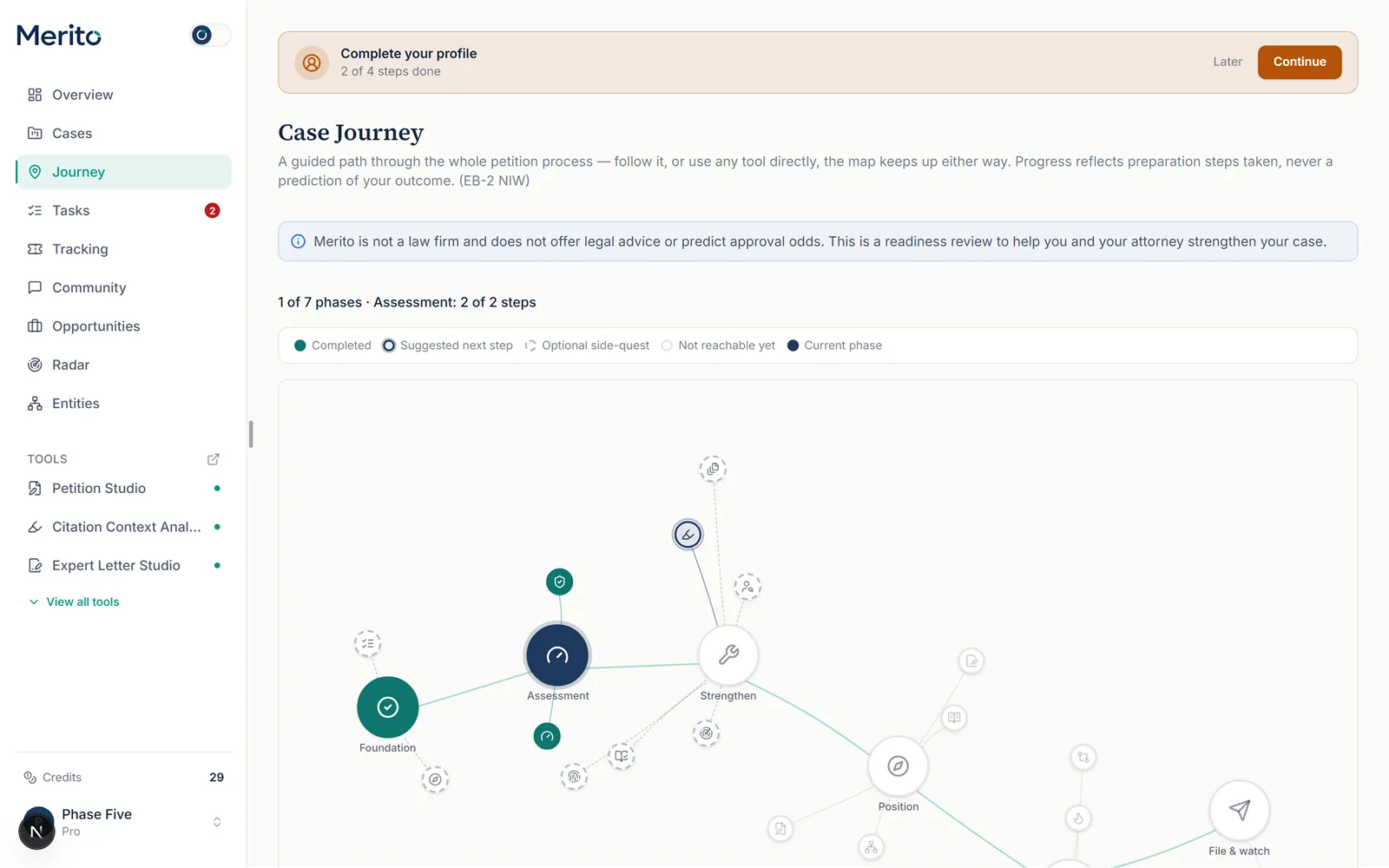
Read your current phase. The header shows how many of the 7 phases are complete, and within your current phase, how many required steps are done.
Scroll across the checkpoints. Each of the 7 checkpoints is a stop on the map — Foundation, Assessment, Strengthen, Position, Stress-test, File & Watch, Respond. A scroll hint appears if the map extends past your screen.
Click any stop to see details. A checkpoint panel shows every node inside it — its status, whether it's required or optional for that checkpoint's gate, and a direct "Open [tool] →" link.
Tip: "Optional" doesn't mean the tool is unimportant — it means the checkpoint's gate doesn't require it. Radar, Expert Finder, and Citation tools are genuinely valuable side-quests even though Strengthen's gate can close without them.
Follow the suggested next step, or don't. Exactly one node per open checkpoint is marked "Suggested next step." You can open it directly, or open any other unlocked tool instead — the map updates either way, since it reflects real usage signals, not a required sequence.
Revisit Strengthen as a loop, not a single pass. Unlike the other checkpoints, Strengthen is designed to be visited repeatedly: come back to it every time Assessment finds a new gap to close.
Watch for the Respond checkpoint appearing. Respond stays entirely absent — not locked, genuinely not shown — unless USCIS actually issues a Request for Evidence. Most cases never see this checkpoint at all.
Check your Badge Shelf. Below the map, earned and locked achievement badges are shown together, with a disclaimer that badges reflect activity, not case strength.
Reading the result
Node status glossary (what each label on the map actually means):
- Not reachable yet (locked) — this node's checkpoint hasn't unlocked yet; a prior checkpoint isn't complete.
- Ready to start (available) — unlocked, but not the single node currently flagged as your suggested next step.
- Suggested next step (active) — the one incomplete, required node Merito is currently pointing you toward in an open checkpoint.
- Completed — you've satisfied this node's own completion signal (a real usage signal — e.g. a saved score, an exported binder, a signed-off draft — never a self-reported checkbox).
- Optional side-quest (optional) — available and useful, but not required for its checkpoint to complete.
- Not needed yet (dormant) — used specifically for the Respond checkpoint before an RFE is ever triggered.
Two special cases worth knowing: NIW cases use a 3-prong conjunctive test (all three Dhanasar prongs must clear) instead of the best-3-of-10 criteria selection EB-1A/O-1A use, so "Assessment complete" means something case-type-specific. And AI Drafter appears in the Position checkpoint only for counsel-tier (law-firm-attached) cases — it's genuinely absent, not locked, for a personal-plan case, since it's exclusive to attorney collaborators.
Free vs Pro for this tool
- Case Journey itself is entirely free — the map, all 7 checkpoints, and every node's status are visible regardless of plan.
- What's Pro is behind individual nodes on the map (Case Canvas, Merito Audit, Officer Simulator, and others) — the map shows you they exist and what they'd unlock, but opening a Pro node still requires the Pro plan or credits.
- No card is required to create a case and see your own live map.
- Start your free trial to unlock every Pro node the map points you toward.
Ready to put this to work on your own case? Start free — no credit card required, or start your free trial to unlock the full Pro toolset. For more background from Merito's parent site, see real EB-1A, O-1A, and EB-2 NIW case studies from EB1 Mentor.
Common mistakes
- Treating "optional" as "skip forever." Optional side-quests still add real value (more evidence, better citations, expert introductions) — they're just not blocking.
- Trying to force checkpoints in order. The map explicitly supports using any unlocked tool directly; there's no penalty for working out of the suggested sequence.
- Reading node completion as case strength. Completing a node means you used the tool with a real signal (e.g. ran Merito Audit) — it says nothing about how strong your resulting evidence actually is.
- Expecting the Respond checkpoint to always be there. It's deliberately absent unless an RFE is actually triggered — don't assume something's broken if you don't see it.
Frequently asked questions
Do I need to follow the checkpoints in order?
No. The map tracks your real activity regardless of order — follow the suggested next step, or use any unlocked tool directly.
What does the "You are here" marker mean?
It marks your current active checkpoint on the compact rail view of the map, distinct from the full map's per-node detail.
Why is AI Drafter missing from my Position checkpoint?
It only appears for counsel-tier (law-firm) cases, where an attorney collaborator is attached — for a personal-plan case it's pruned from the map entirely, not shown as locked.
Does Case Journey predict my chances of approval?
No. It explicitly states that progress reflects preparation steps taken, never a prediction of your case's outcome.
Is there a version of this I can try without a case?
Yes — the `/tools/case-journey` marketing page includes a sample journey demo with no login required.
What triggers the Respond checkpoint to appear?
USCIS actually issuing a Request for Evidence on your case — it stays dormant (not shown as locked, simply absent) otherwise.
Merito is not a law firm and does not offer legal advice or predict approval odds. This is a readiness review to help you and your attorney strengthen your case.